

Introduction: Build Your Website the Smart Way in the U.S.
If you’re in the U.S. and thinking about launching a website, you’re already on the right track. Whether it’s for a side hustle, small business, blog, or personal brand—your website is your digital home. The good news? You don’t need to be a developer or spend thousands of dollars to get started.
WordPress powers over 43% of all websites globally, including many top U.S. businesses. That means you’re using the same platform trusted by professionals—but tailored here for beginners.
Still, many first-time users feel stuck. Questions like “Where do I even start?” or “What if I mess something up?” are completely normal. This guide simplifies everything into easy, actionable steps so you can install WordPress and customize your website without stress.
What Is WordPress and Why It’s Perfect for U.S. Beginners
WordPress is a free platform that lets you build websites without coding. Think of it like building with LEGO—you just pick the pieces (themes and plugins) and assemble your site.
Why WordPress is so popular in the U.S.:
- Affordable: Start for as low as $3–$10/month
- Flexible: Blogs, business sites, eCommerce—you name it
- SEO-ready: Built to rank on Google
- User-friendly: Designed for beginners
💡 Real-world example: A local coffee shop in New York can use WordPress to create an online menu, accept orders, and attract local customers—all without hiring a developer.
Step-by-Step Guide: How to Install WordPress
Step 1: Choose a Domain Name and Hosting
Your domain name is your website address (like yourbrand.com), and hosting is where your website lives online.
Best Hosting Providers in the U.S.:
- Bluehost (beginner-friendly)
- SiteGround (fast performance)
- HostGator (budget option)
💰 Typical Costs (USA):
- Domain: $10–$15/year
- Hosting: $3–$12/month
Step 2: Install WordPress in One Click
Most U.S. hosting companies make this extremely easy.
Here’s how:
- Log into your hosting account
- Click “Install WordPress”
- Select your domain
- Create login details
- Click install
⏱️ Takes less than 5 minutes.
Step 3: Access Your Dashboard
Go to:
👉 yourdomain.com/wp-admin
This is where all the magic happens.
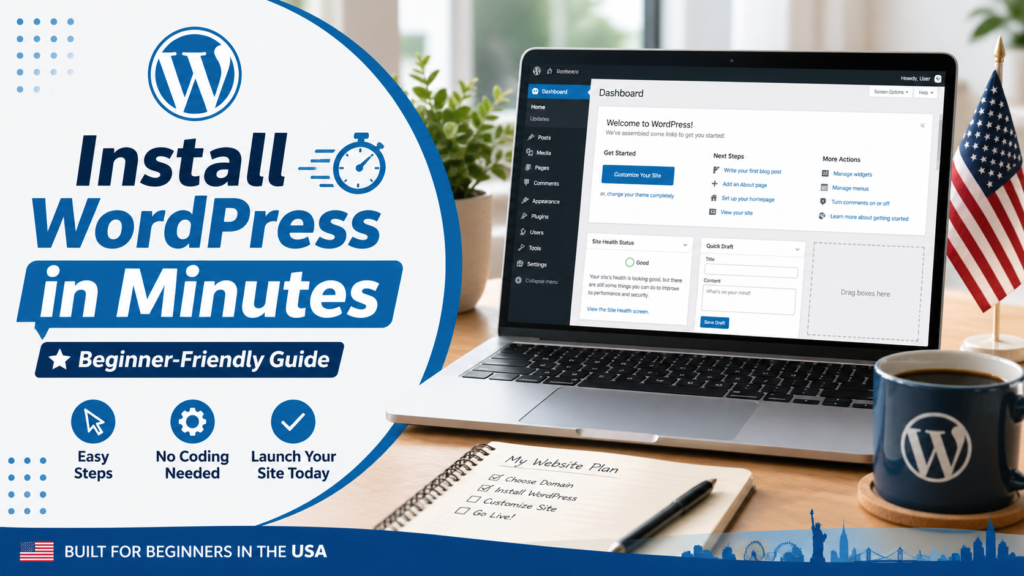
🖼️ WordPress Dashboard Preview
Alt text: WordPress dashboard interface showing menu, posts, pages, and plugins
How to Customize Your WordPress Website
Step 4: Choose a Theme (Design of Your Site)
A theme controls how your website looks.
Best Free Themes for U.S. Beginners:
- Astra (fast & lightweight)
- Neve (modern design)
- OceanWP (highly customizable)
Install a Theme:
- Go to Appearance → Themes
- Click “Add New”
- Search your theme
- Click “Install” → “Activate”
Step 5: Customize Your Website Design
Go to:
👉 Appearance → Customize
You can edit:
- Logo & branding
- Colors & fonts
- Layout & homepage
🖼️ Theme Customization Panel
Alt text: WordPress customization panel with design settings
Step 6: Install Essential Plugins
Plugins are like apps for your website.
Must-Have Plugins (USA Beginners):
- Yoast SEO – Rank on Google
- Elementor – Drag-and-drop design
- WPForms – Contact forms
- Wordfence – Security
- WP Super Cache – Speed
Step 7: Create Important Pages
Every U.S. website should have:
- Home
- About
- Contact
- Privacy Policy (important for compliance)
How to create pages:
- Go to Pages → Add New
- Add content
- Click Publish
Step-by-Step Quick Checklist
- ✅ Buy domain & hosting
- ✅ Install WordPress
- ✅ Choose a theme
- ✅ Install plugins
- ✅ Create pages
- ✅ Customize design
Key Takeaways
- WordPress is beginner-friendly and affordable
- Installation takes under 10 minutes
- Themes and plugins make customization easy
- SEO can be built in from day one
Pros and Cons of WordPress
| Pros | Cons |
|---|---|
| Easy to use | Requires updates |
| Highly customizable | Learning curve |
| SEO-friendly | Plugin conflicts |
| Low cost | Maintenance needed |
Common Mistakes to Avoid
Avoid these beginner errors if you want success:
- Choosing cheap, slow hosting
- Installing too many plugins
- Ignoring mobile optimization
- Not setting up SEO early
- Using weak passwords
📊 Stat: A slow website can increase bounce rates by over 30%, hurting your Google rankings.
Step-by-Step Guide to Customize Like a Pro
If you want your website to stand out in the U.S. market, follow this:
- Install Elementor
- Choose a homepage template
- Customize branding (colors, logo)
- Add call-to-action buttons
- Optimize for mobile
Actionable Tips for U.S. Website Success
- Use a .com domain (trusted in the U.S.)
- Optimize images for speed
- Use clear CTAs like “Get Started” or “Contact Us”
- Add testimonials for trust
- Keep design simple and clean
Real-Life Example (USA)
Mike, a fitness coach in Texas, created his WordPress website using Bluehost and Astra theme. Within 60 days, he ranked on Google for local searches like “personal trainer in Dallas” and started getting clients organically.
That’s the power of combining WordPress + SEO + smart setup.
Internal Linking Suggestions
To boost SEO, connect this article to:
- Best WordPress Hosting USA
- How to Start a Blog in the U.S.
- WordPress SEO Beginner Guide
Conclusion: Your Website Is Just a Few Clicks Away
Getting started with WordPress doesn’t have to be complicated. With the right hosting, a simple theme, and a few essential plugins, you can launch a professional-looking website in under an hour.
The difference between people who succeed online and those who don’t? They take action.
Your website is your opportunity to grow, earn, and build something meaningful—especially in a competitive U.S. market.
👉 Start today. Your future audience is already searching.
FAQs (Optimized for Featured Snippets)
1. How do I install WordPress in the USA?
Use a hosting provider like Bluehost, choose a domain, and install WordPress using the 1-click setup.
2. Is WordPress free in the U.S.?
Yes, WordPress is free, but hosting and domain cost around $50–$100/year.
3. Can beginners use WordPress easily?
Absolutely. WordPress is designed for beginners and requires no coding skills.
4. What is the best WordPress theme for beginners?
Astra and Neve are great choices due to speed and simplicity.
5. How long does it take to build a WordPress site?
You can create a basic site in 1–2 hours.